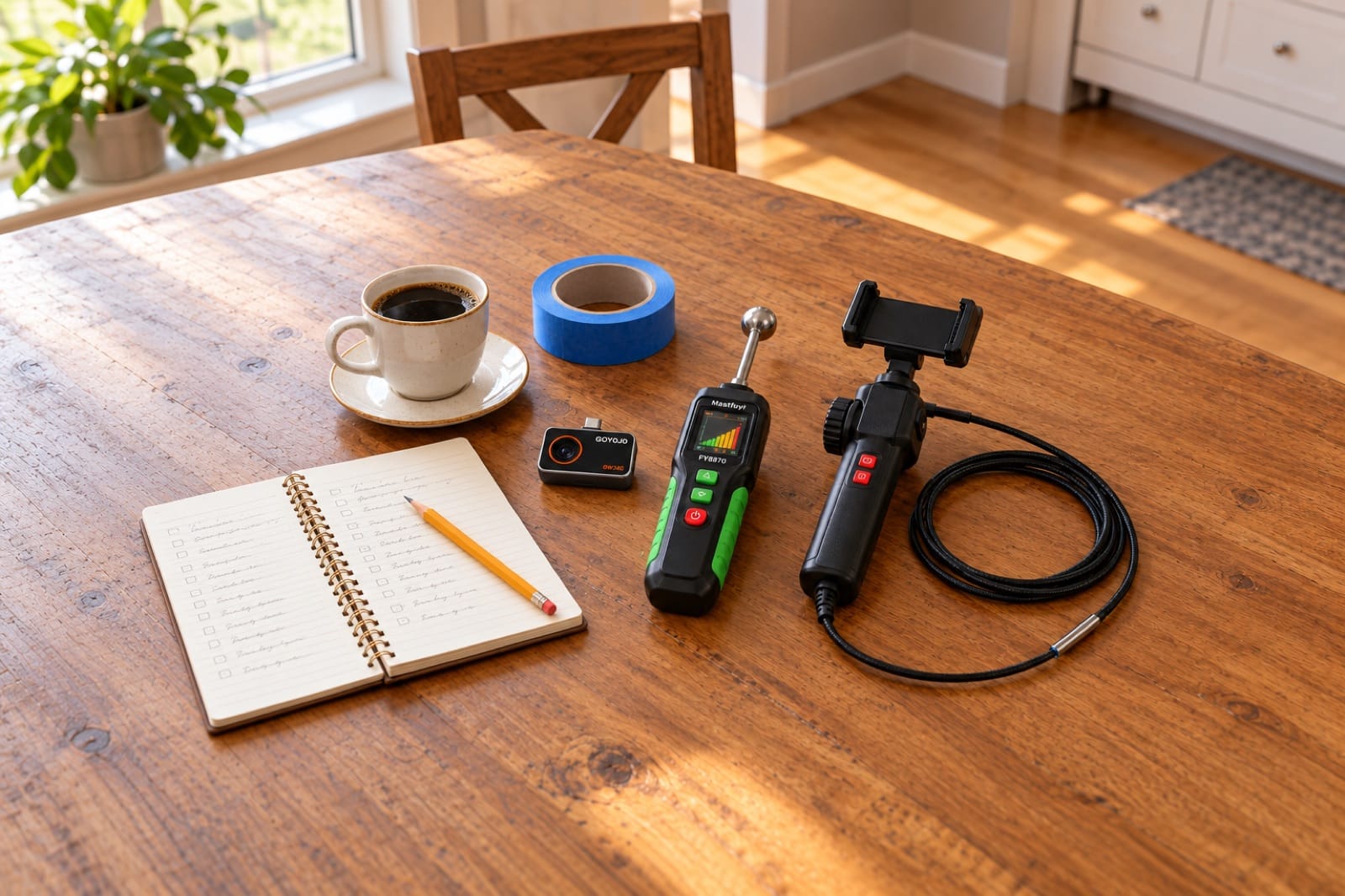
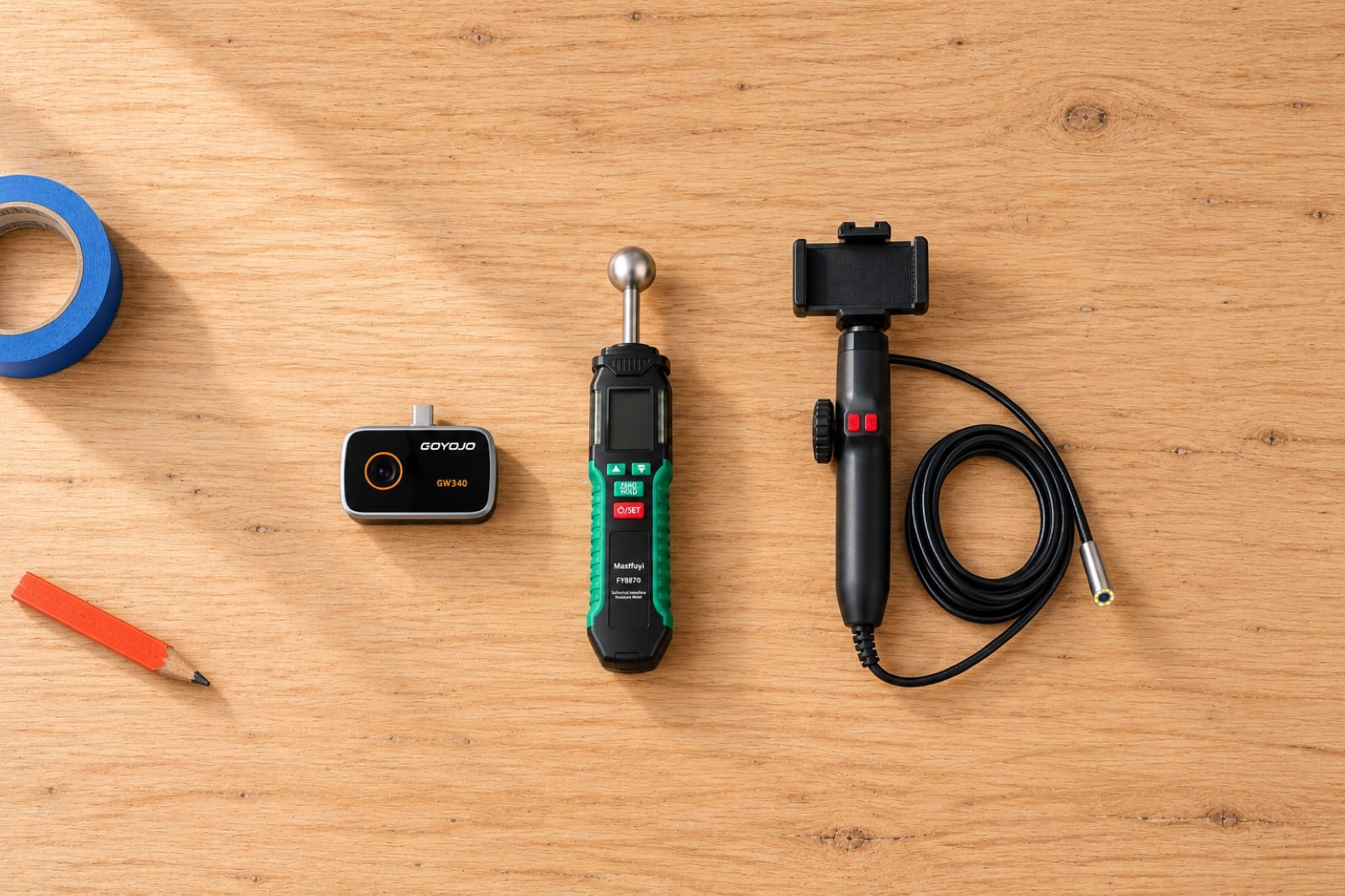
Endoscope and thermal camera for Android
Every phone tool we sell plugs into the USB-C port of an Android phone: two inspection scopes for looking inside walls, drains and engines, and two thermal cameras for seeing heat. Here's which is which, and how to get them working.
Reach 360 and Reach Duo (inspection scopes) work with Android phones that have USB-C, and Reach Duo also fits micro-USB with the adapter in its box. Spark and Spark Pro (thermal cameras) work with USB-C Android phones on Android 12 or newer. Plug in, open the free app — and if nothing happens, turn on OTG in the phone's settings.
What works with Android
| Tool | What it does | Android | App |
|---|---|---|---|
| Reach 360 | Inspection scope with a tip that bends up to 180° each way | USB-C | The maker's free app, linked in the manual |
| Reach Duo | Inspection scope with a front and a side camera | USB-C (micro-USB adapter in the box) | The maker's free app, QR code in the box |
| Spark | Thermal camera, 96×96 sensor | USB-C, Android 12+ | THG Start (free) |
| Spark Pro | Thermal camera, 256×192 sensor | USB-C, Android 12+ | THG Start (free) |
On a phone with an older micro-USB port, only Reach Duo fits, using the adapter in its box. To check your Android version, open Settings → About phone.
Samsung Galaxy, Pixel and other phones
What matters is the port and the Android version, not the brand. Most Samsung Galaxy, Google Pixel, Motorola and OnePlus phones from the last few years have USB-C and run Android 12 or newer, which is all four tools need. If your phone isn't recent, check the Android version before you order a thermal camera; the scopes only need USB-C.
If the phone doesn't see the camera
- Turn on OTG. Plug-in cameras use USB OTG. Most phones allow it by default, but on some it's a switch in Settings — search for "OTG". Some phones turn it off again after a while without use.
- Take the case off. A thick case can stop the plug from going all the way in.
- Open the app after plugging in, and allow it to use the camera or USB device when the phone asks.
Still nothing? Email us before you send anything back — it's usually a setting. If it doesn't work with a phone we list as compatible, we refund you in full, including return shipping.
Set it up, step by step
- Check the phone. Look at the port, and at the Android version in Settings → About phone. The thermal cameras need Android 12 or newer.
- Install the app first. THG Start for Spark and Spark Pro; for the scopes, the maker's free app from the manual or the QR code in the box.
- Plug in with the case off if your case is thick, and open the app.
- Allow access to the camera or USB device when the phone asks.
- Test it on something easy. Point a thermal camera at your hand or a mug of hot water; it should stand out from the room. Point a scope at printed text a few centimeters away.
Once it works, how to read a thermal image explains what the colors mean.
Which one do you need?
- Looking inside a wall, a drain or an engine: an inspection scope. Reach 360 steers around corners; Reach Duo's side camera reads pipe walls — see dual-lens vs articulating.
- Finding where the problem is first: a thermal camera shows leaks, drafts, missing insulation and hot outlets from the outside. Spark for close checks, Spark Pro for whole walls and ceilings — see Spark vs Spark Pro.